
IPTV on Firestick: Installation Guide
Learn how to set up IPTV on Firestick using a compatible IPTV player, plus troubleshooting tips.
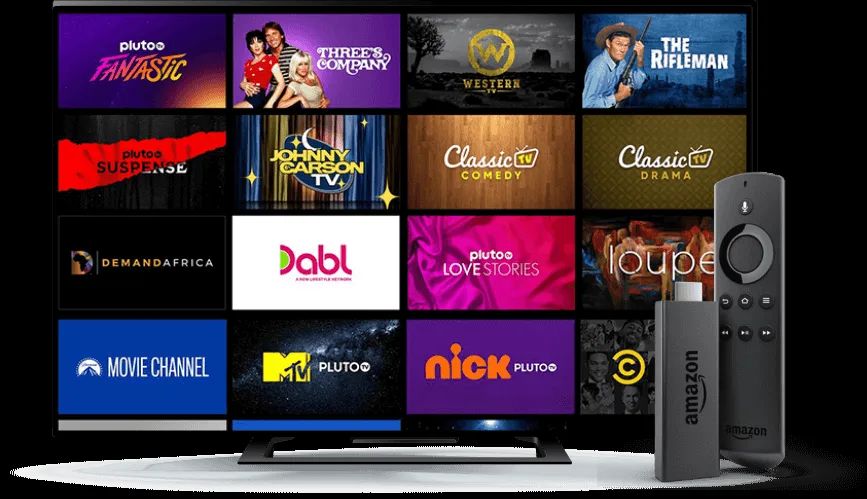
Set up IPTV on Firestick
For IPTV on Firestick, start by confirming that your Fire TV device and selected IPTV app are compatible. Obtain the app from a trusted source and follow its on-screen installation instructions.
- Connect Firestick to a reliable Wi-Fi network and update Fire OS.
- Install a compatible IPTV player supported on your device.
- Use the activation details supplied with your subscription.
- Open the live channel guide and check the playback quality.
Playback troubleshooting
Try restarting your Fire TV device, checking network speed and using the correct player settings. Our support team can help with setup questions.
Compare IPTV USA plans and browse the channel list.
Before you set up IPTV on Firestick
Check that your Fire TV device has an internet connection and enough available storage for the streaming player you plan to use. An IPTV subscription and a player application are different things: buying a subscription does not necessarily install or license the app itself.
Step-by-step setup overview
- Update your Fire TV software and connect to your preferred network.
- Choose a compatible player and follow its official installation guidance.
- Open the player and enter only the subscription details supplied for your account.
- Check that the playlist loads, then test a few channels and the available programme guide.
- If playback stalls, test your connection and player settings before changing anything else.
Help choosing a plan
Our IPTV subscription USA plans offer 1–4 simultaneous-device options. Choose a device allowance based on how many streams will actually run at once. Use the channel directory to look up a network, or ask for help on the support page. Compare other devices in the setup guides hub.
IPTV on Firestick: After Installation
Once a compatible player is installed, use the activation method supplied with your subscription and allow the channel categories to load. If a player offers favourites, organise frequently watched channels so you can find them without scrolling through the complete catalogue.
Video Quality and Buffering
Streaming performance depends on the source, your Fire TV hardware and the network. Check the Wi-Fi signal first, restart the app if it becomes unresponsive, and consider a supported wired connection when practical. If your player offers alternative source-quality choices, test them to see which is most stable on your equipment.
Programme Guide and Support
Some apps display an EPG with upcoming programmes, but not every channel has schedule data. Explore our channel directory, browse other device guides, or contact support with the Firestick model and application name. Remember to choose the correct simultaneous device count when comparing subscription plans.